
- Marketplace
- For Businesses
Overview Business software for small teams, schools and nonprofits. Education The Education Kit for schools and colleges. Why Clouve How Clouve compares with your other options. Case study How an education institution moved its LMS and SIS. Trust & Security Hosting, backups, recovery targets and your data. Business docs Guides for running your apps on Clouve.
- For Developers
- Partners
- Insights
- Pricing
- Log in
- Start free trial
Many schools run two systems that ought to agree with each other. The office keeps students, timetables and attendance in one, and teaching happens in another. When a new student arrives, someone has to add them to both, and in a school without IT staff that job lands on whoever has time.
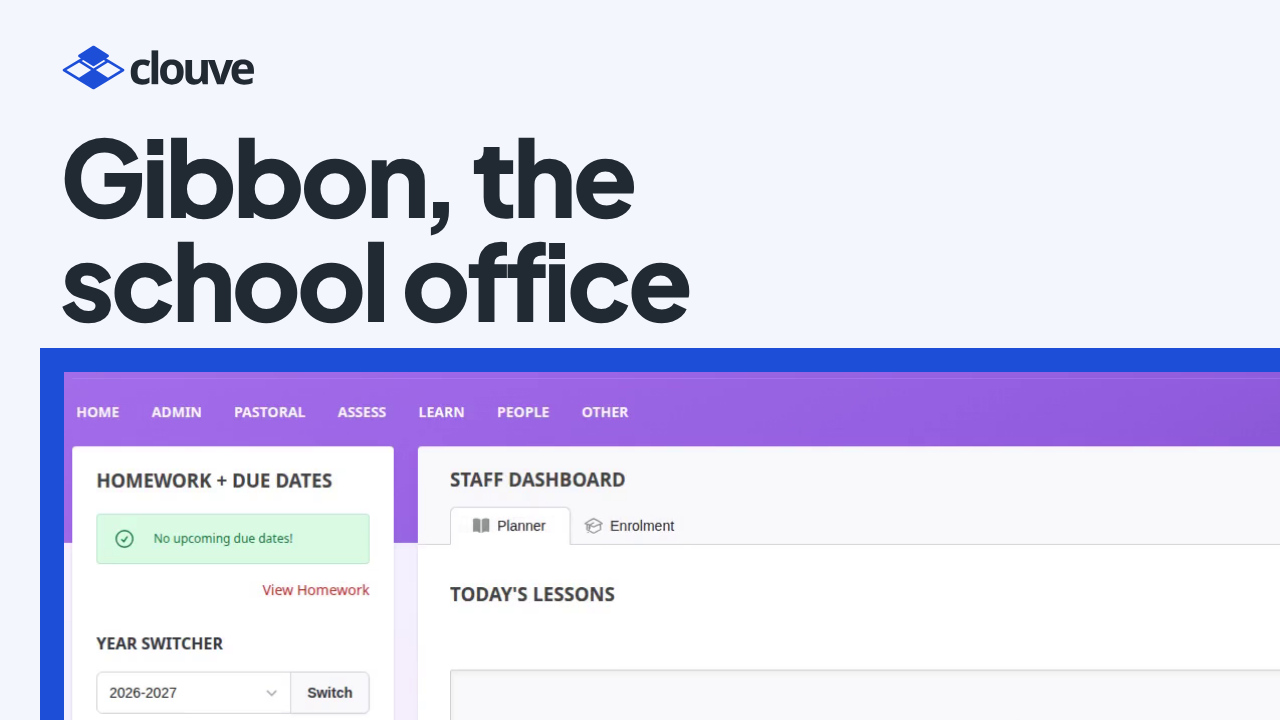
The Education Kit puts the two together. Gibbon runs the school office, Moodle runs the teaching, and an AI Assistant helps you look after both. Our demo takes a school leader from the Clouve marketplace to a running school system, then asks the assistant to add a student.
Key takeaways
- One install sets up Gibbon and Moodle, each with its own web address and admin login.
- Moodle signs people in with their Gibbon accounts and takes courses and enrolments from Gibbon.
- Asked in plain English to add a student, the AI Assistant checked both apps first and asked before every command. It was done in about four minutes.
- The new student signed in to Moodle with a temporary password, and Moodle asked her to choose her own.
Two systems, one student
A student information system and a learning platform each do their job well. The trouble is the gap between them: accounts, passwords and enrolments have to match, and keeping them matched takes someone who understands both apps.
How it works, step by step
- Find the kit (0:00). On the Clouve marketplace, open Bundles (apps that work together), filter for the ones with the AI Assistant and open the Education Kit. The card shows the monthly price and what the assistant adds.
- Subscribe with the AI Assistant (0:46). Keep the X-Small size to start. Two web addresses come included, one for each app. At checkout the AI Assistant is already ticked, and the total shows the plan plus the assistant, per month.
- Both apps, running (1:38). Clouve builds both apps, their databases and the AI Assistant. A few minutes later, Gibbon’s and Moodle’s addresses and admin logins are in the same place.
- Gibbon and Moodle (2:04 and 2:36). Copy the password, open Gibbon and sign in. It holds people, timetables, attendance and reports, and its user list shows one user so far: the administrator. Moodle opens the same way, with its own address and login, ready for your first course.
- Open the AI Assistant (3:08). It’s ready to work, with no key to paste and nothing to set up. A strip shows this month’s AI usage.
- Ask it to add a student (3:28). In plain English: add a new student, Maya Patel, and make sure she can sign in to Moodle. The assistant reads its Gibbon and Moodle skills and checks both apps without changing anything. Every check waits for your OK, even the read-only ones.
- The assistant at work (4:05). It explains how the two apps connect, lays out a plan and asks a few questions. You answer in plain words: her username, email and date of birth, no classes for now, and a temporary password she has to change. It shows the exact change it will make in Gibbon and waits for your yes. Then it adds Maya to Gibbon, runs Moodle’s sync to create her account, sets the temporary password and waits for Moodle’s next scheduled run, to make sure the password sticks.
- Maya signs in (4:43). The assistant shows the temporary password once. It says it checked her account in Moodle’s database but hasn’t tried a real sign-in. Back in Gibbon, Maya is on the roll as a student, and when she signs in to Moodle, Moodle asks her to choose her own password.
- AI usage (5:10). The strip shows how much of the month’s AI usage that took. You can buy more for the month or turn the assistant off, and it stays on until the end of the month you’ve paid for.
Who benefits
Schools and colleges without IT staff benefit most, because the person who adds a student no longer has to know how Gibbon and Moodle are wired together. The education page lists what the kit includes, and the case study follows one institution’s move to a new Education Kit, with both apps upgraded on the way.
Questions people ask
Do students added in Gibbon show up in Moodle on their own?
Moodle takes its accounts and enrolments from Gibbon through a sync. A new student can sign in once that sync has run and a Moodle password is set. In the demo, the AI Assistant did both.
Who uses the AI Assistant?
The people who run the school’s deployment, such as an administrator. It works on Gibbon and Moodle for you; teachers and students keep using the two apps as usual.
Is the AI Assistant included in the free trial?
It costs nothing extra during the trial, but it comes with no AI usage, so you sign in with your own Claude subscription. On a paid plan, the AI Assistant’s price includes a monthly allowance of AI usage, and you need no API key.
Try it with your own school
The Education Kit has a 90-day free trial at X-Small, with no payment details needed.